

In this series, we’ve already installed the Copilot Agent Kit, configured it, and taken a good look at the Agent Inventory. Now it’s time to explore one of my favourite features of the whole kit: the Compliance Hub.
If Agent Inventory is about *seeing* every agent in your tenant, the Compliance Hub is about *doing something* with what you see. It lets you define your organisation’s rules, automatically catch the agents that break them, nudge the makers responsible, and — if it comes to it — quarantine or delete agents that never get brought into line. It’s governance on autopilot, and it’s a genuine game-changer for admins.
The official documentation for the Compliance Hub lives here. It is important to note that Compliance hub relies on the Agent Inventory table to do its checks against, so Agent Inventory must be set up beforehand.
In this post, I’m going to give you a tour of what Compliance Hub can do by using a commonly requested real-world scenario: identifying and governing agents built on the new GitHub Copilot harness (GHCh for short). Let’s get started!
📊 The Dashboard
When we first open the Compliance Hub, we’re greeted with a dashboard that summarises the current state of our agents against whatever compliance rules we’ve configured. At a glance, an admin can see which agents are high risk, which are missing owners, and which need immediate attention. Everything is visible from one place.
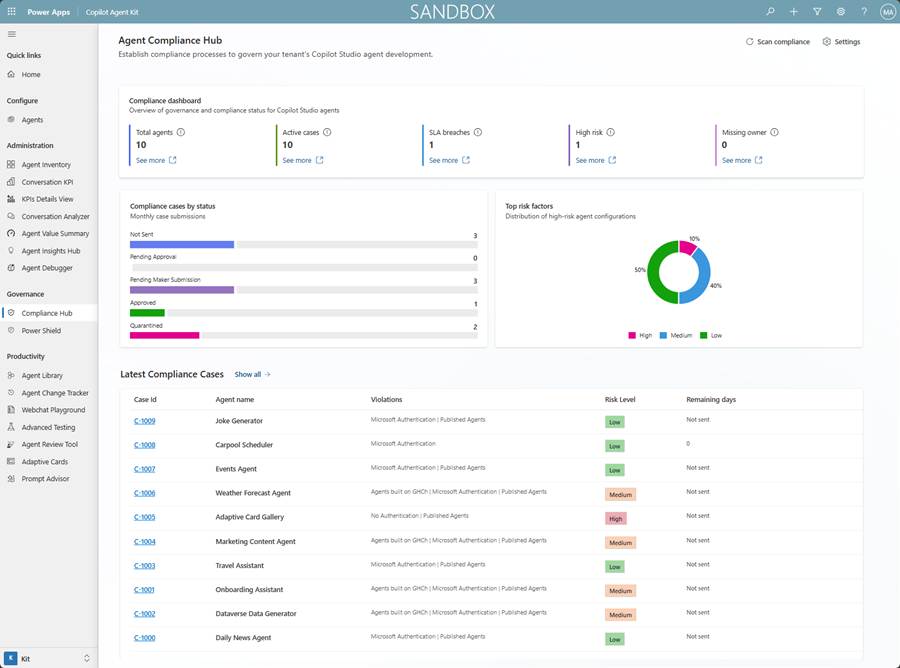
This dashboard is populated by information from a flow that is kicked off automatically on a daily basis once the Agent Inventory flow has completed its refresh. So even if you never touch it, the Hub keeps checking in the background. You can also manually kick off a Compliance Scan from this screen using the Scan Compliance button in the top right corner whenever you like.
Everything you see on this dashboard is driven by the settings behind it, so let’s start digging in, beginning with the rules themselves.
🛡️ Compliance thresholds: the governance rules
Compliance Thresholds are the key to the Hub. Think of them as your rules, or risk factors, for agents. The kit ships with several out of the box, and — as we’ll see shortly — you can add your own.
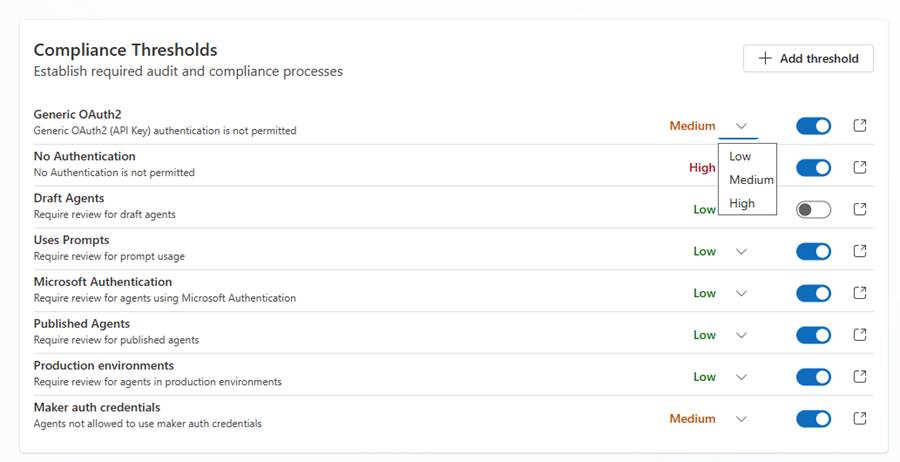
Each threshold, or rule, is measured as low, medium, or high risk. When an agent is created that matches one of these rules, the agent is categorised at the highest severity it violates. So, an agent that breaks a low-risk rule *and* a medium-risk rule is treated as medium risk overall.
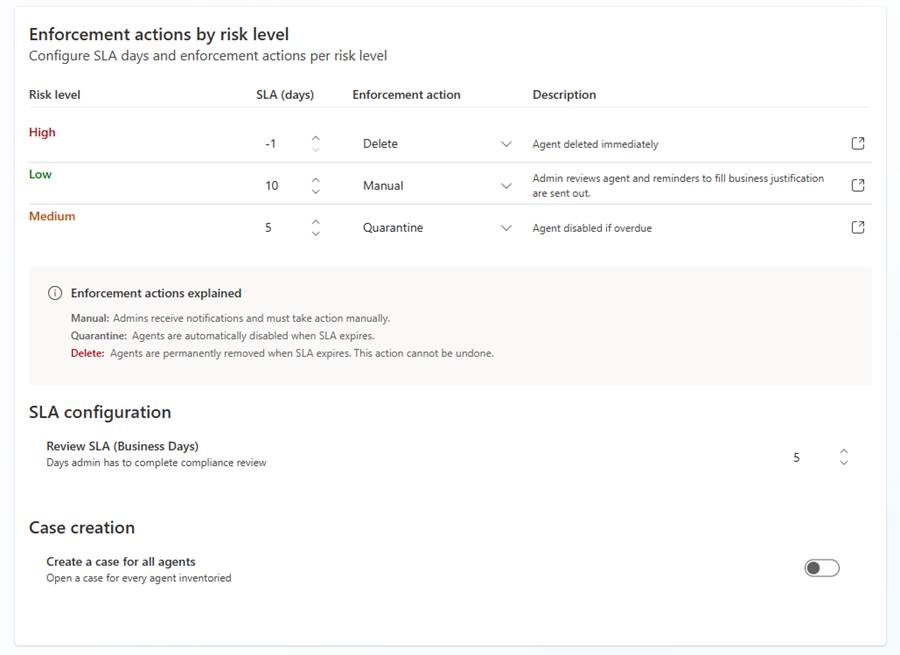
Here’s where it gets clever: each risk level is tied to an enforcement action, and those actions are also customisable.
🗂️ Cases, SLAs, and enforcement
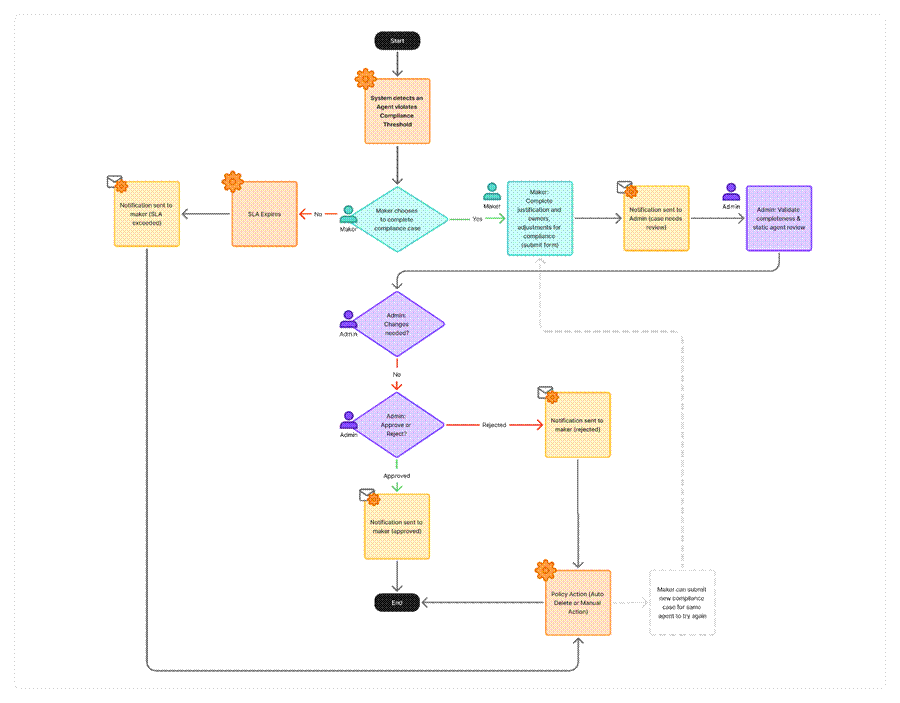
When an agent matches one or more of your configured risk factors, the Compliance Hub creates or updates a case. Each case gets is assigned SLA in line with the Risk Level the agent poses. The SLA is a countdown that gives the owner of the agent time to put things right before an enforcement action kicks in.
Out of the box, the default policies give a medium-risk case five days before quarantine, and a high-risk case three days before deletion. But you’re not stuck with those numbers — admins can change both the SLA *and* the action for every risk level. There are three types of enforcement actions:
- Manual – The admin must manually handle the agent.
- Quarantine – Disables the agent for end users while leaving it available to its owner for remediation.
- Delete – Permanently removes the agent. This one can’t be undone, so treat it with respect!
Note: Only published agents can be quarantined. If an agent is still in a draft state, it can only be deleted or handled manually.
So, as you can see – you’re not just flagging problems to deal with later, you’re defining exactly what happens and when, and then letting the Hub carry it out for you automatically, if you want!
📨 Notifications and intake requests
Before we get to our scenario, there’s one more piece of setup that’s absolutely critical to understand, because it catches a lot of people out.
The SLA timer does not start ticking until the intake form is sent to the agent’s owner. Read that again, because it matters a great deal depending on the outcome you’re after.
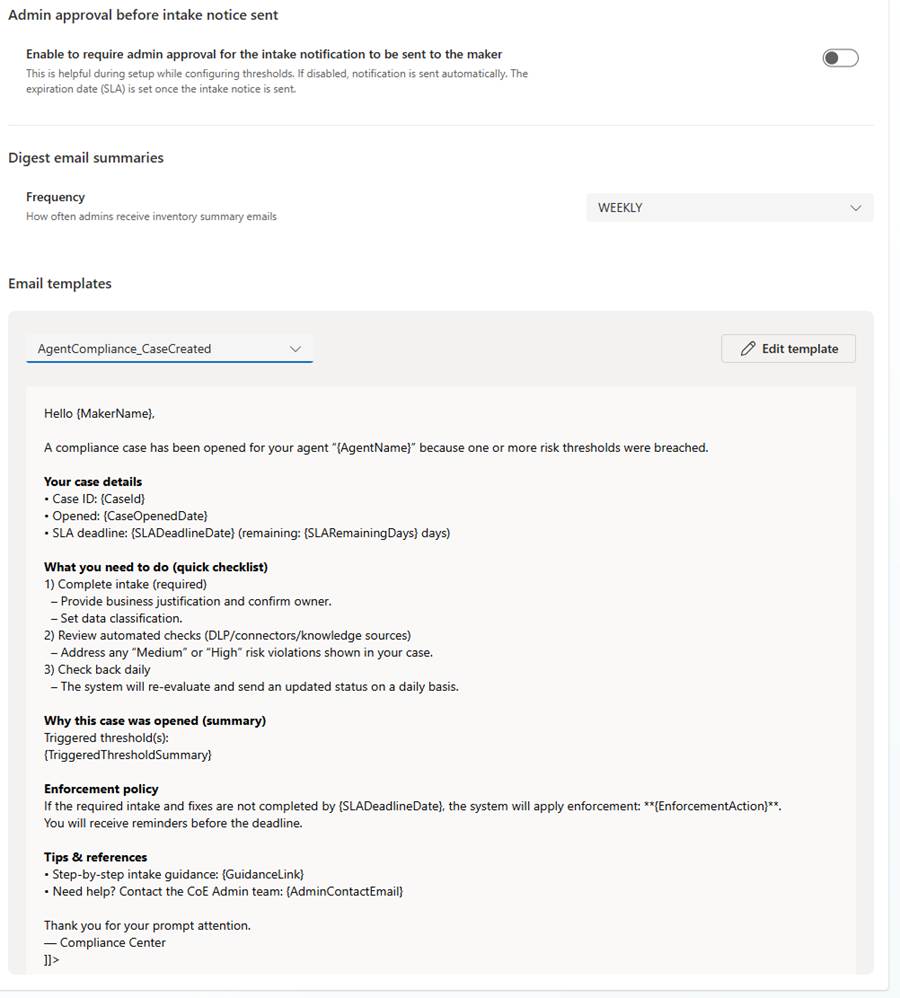
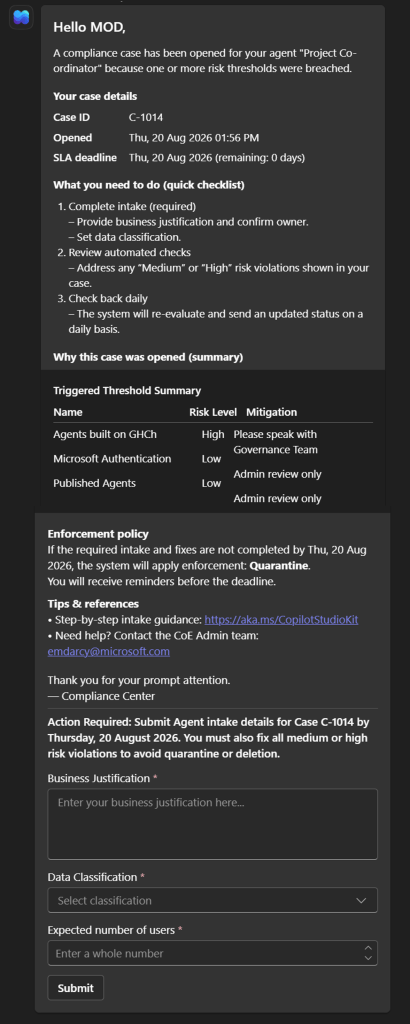
These settings let you decide whether to *automatically* send an intake request for every case created, or to send them manually. The intake request itself sends an adaptive card to the agent’s owner, asking them to provide a business justification for their agent — and, crucially, it starts the SLA countdown. The notification looks something like this:
This section also holds a set of email templates you can customise for all sorts of purposes, which we’ll take advantage of in a moment.
Right, now we understand how things work, let’s see it all in action!
🚀 Real Life Use Case: Governing GHCh Agents
The new GitHub Copilot harness gives makers an exciting new way to build, but while your organisation is still feeling out its adoption strategy, you might want to keep a close eye on which agents are being built on it. This is a perfect job for a custom Compliance Threshold rule.
First, we create a new threshold record by clicking the Add threshold button under the Settings area, which opens this screen:
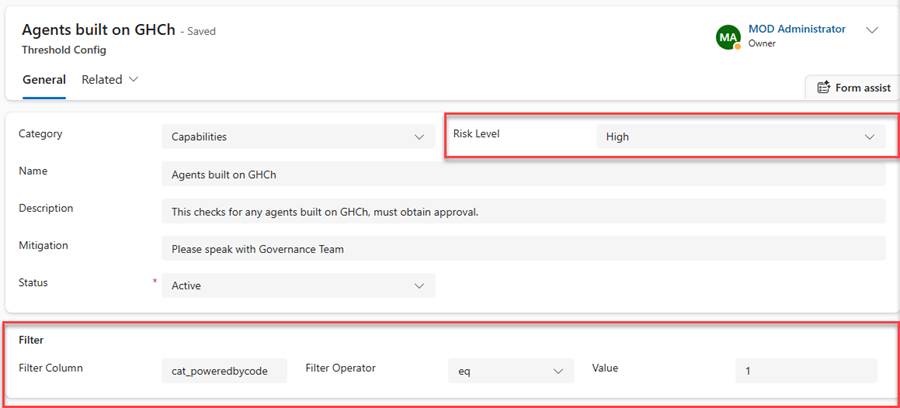
Custom thresholds can match against any data we collect in the Agent Details table. The Filter section lets us pick a column and build a query against it. In our case, we want to catch every agent where the harness is GitHub Copilot.
We’ll set the risk level to high (or whichever risk level you wish to use) then build our filter query.
Note: In the August 2026 version I used for this walkthrough, the Powered By column in the Agent Details table has the logical name cat_poweredbycode, and its GitHub Copilot choice value is 1. Before you create your rule, double-check the column name and choice value in your own environment’s Dataverse table metadata as solution updates can change these implementation details over time.
Give the threshold a nice clear name that your makers will actually understand, along with guidance on what they need to do to resolve the violation. Save the rule and head back to the Settings page.
Note: If you need to check additional data sources, you can always add custom logic into the flows. That’s beyond the scope of this post, but it’s good to know the option is there.
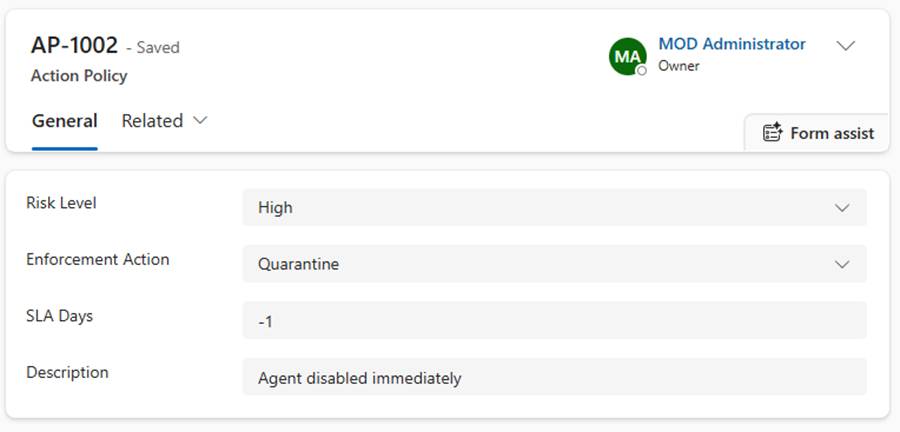
Back on the Settings page, make sure the matching risk level (remember, I chose high) is set to an SLA of -1 with an enforcement action of Quarantine. I’m choosing -1 here as I want the SLA to be in immediate violation as soon as it kicks in. Your other options here are Manual and Delete — you can read more about how each action behaves in the setup and configuration docs. Don’t forget to edit the description so it’s crystal clear to the maker what’s about to happen to their agent:
Note: A quick but important heads-up! Even quarantined agents can still consume credits if the maker is testing them. For a proper deep-dive on managing cost and credits, I can’t recommend my colleague Lewis Baybutt’s blog enough: go and read it here.
Now, remember our golden rule from earlier? The SLA countdown doesn’t start until the intake form reaches the maker. If you want these GHCh agents to enter the enforcement lifecycle automatically, disable the Admin Approval Before Maker Notification flag once you’re happy your thresholds are behaving. Leave it on, and an admin will have to open every single case and send the notification manually.

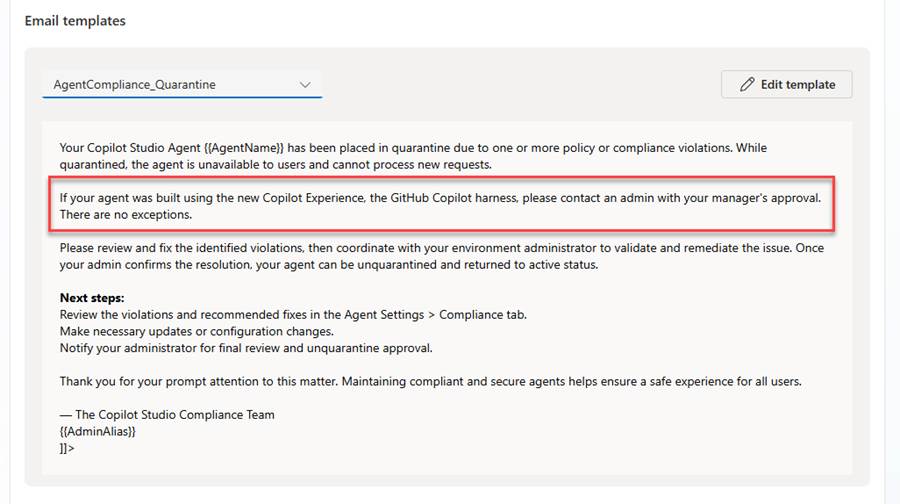
One last touch: customise the quarantine email so it spells out your organisation’s policy on GHCh agents. I added a line to mine so makers immediately understand what’s happened and why:
With all of that in place, run a Compliance Scan. Any published agents matching our GHCh threshold will enter the compliance lifecycle and be quarantined once their cases pass the SLA. 🎉
⏱️ Understanding When Enforcement Actually Happens
This is the part that trips people up the most, so let’s take a second to go back over this. A compliance case must be past its SLA before any enforcement action is taken. A case is created when one of two things happen:
1. Agent Inventory runs and picks up a *new* agent that violates a threshold rule.
2. Compliance Scan runs and finds an *existing* agent now violates a rule – either because the agent changed, or because you created a new rule (like our GHCh one!).
Once a case exists, sending the intake notification starts the SLA countdown. A later Compliance Scan then re-evaluates the case and applies the enforcement action only if the SLA has expired. In other words, one scan opens the case and starts the clock; a subsequent scan is what actually pulls the trigger. Remember, you can run a scan manually from the dashboard at any time, and one runs automatically after the daily Agent Inventory update.
🔁 Automating The Whole Process
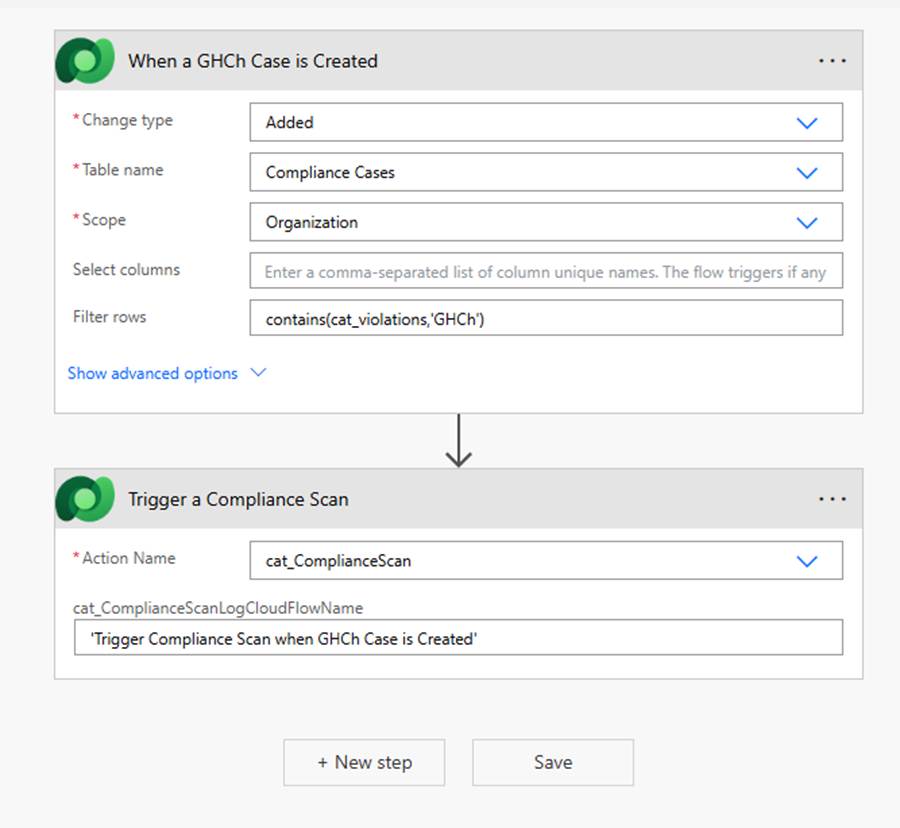
Because I like to make life as easy as possible, I built a little custom flow to speed things along. It triggers whenever a Compliance Case containing a GHCh violation is created, using a simple “When a record is added” trigger paired with an unbound action to call the Compliance Scan flow:
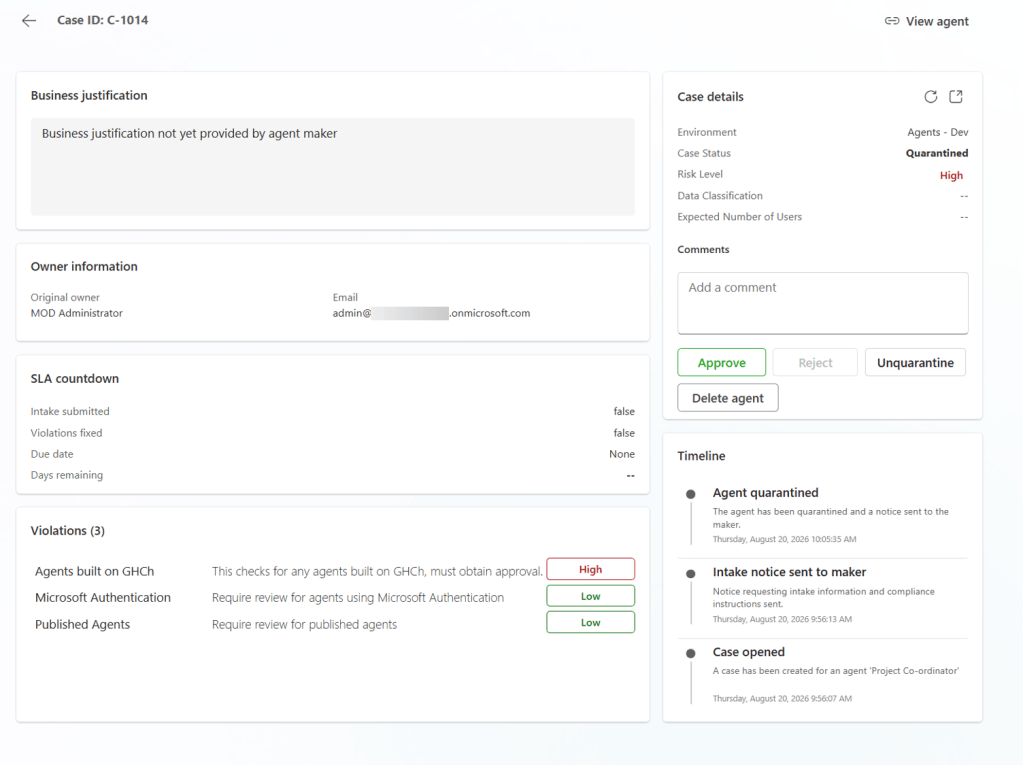
Now whenever a GHCh agent case is picked up, that enforcement rule we created is automatically actioned! Here’s an example of what that case might look like – notice the time stamps in the Timeline.
✨ Wrapping Up
And that’s the incredible power of Compliance Hub! We’ve seen how thresholds, cases, SLAs, notifications, and enforcement actions all work seamlessly together to give admins a practical, automated way to keep agents in line with organisational policy. We’ve even learned how to use it to govern a real-world scenario with the GitHub Copilot harness.
My advice? Start gently. Try quarantine in a non-production environment first, watch a full case lifecycle play out from creation to enforcement, and then decide how aggressively you want to automate. Once you trust it, it’s brilliant.
That’s another feature of the Copilot Agent Kit in the books! I’m looking forward to sharing another super cool feature with you very soon! Stay tuned!


One thought on “Leveraging Compliance Hub from the Copilot Agent Kit to Automate Agent Governance”