

On September 1st 2026 – Microsoft will begin charging Personal Development Accounts copilot credits, which means some customers may be hit with unexpected credit consumption charges. By default, environments have the “Draw from Available Tenant Capacity” flag turned on. Thankfully, we now have an Environment Group Rule that will allow us to turn this off at scale. Let’s take a look at how to set this up.
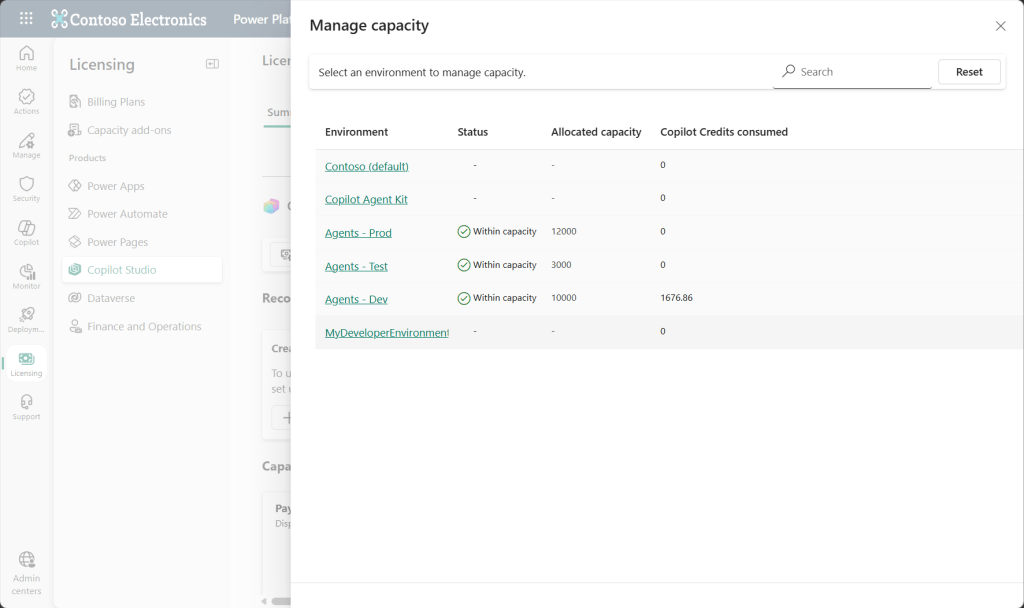
First, it’s important to understand what a developer environment is. I’m not talking about your dev environment in your ALM setup. These are personal developer environments that are a designed for individual use, designed to allow makers to test in an isolated space. Note in my screenshots below how the environment type is set to “Developer”. These are the environments we need to look at. More info about various environment types can be found here.
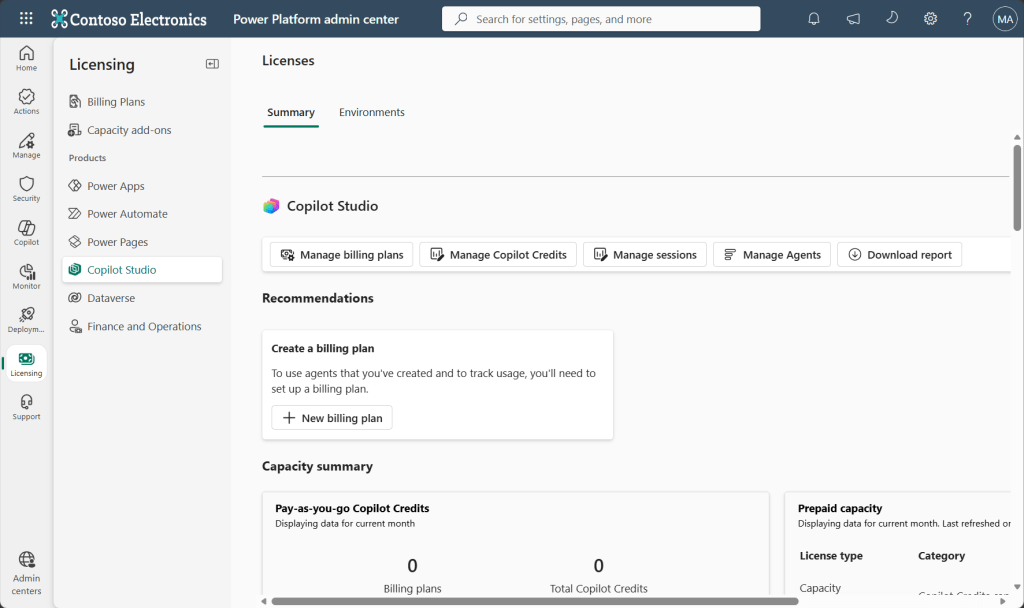
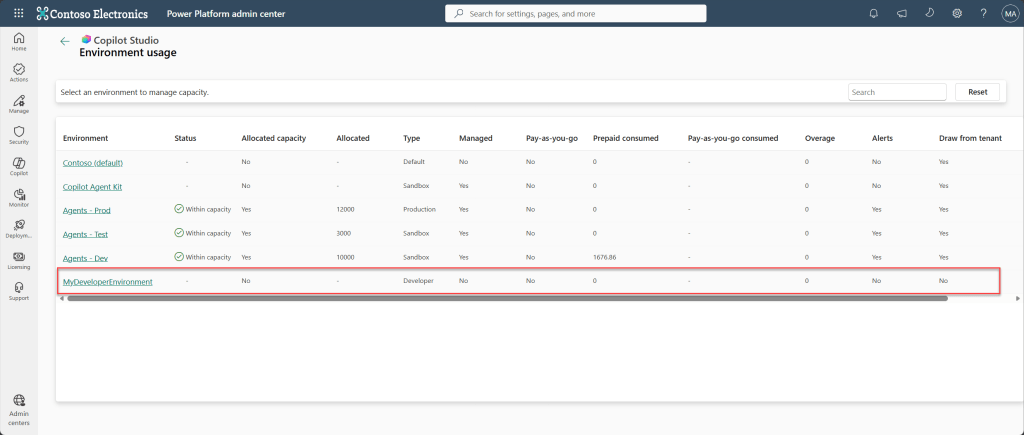
To start, take a look at what environments you have that are drawing from your tenant pool by going to the Power Platform Admin Center. Click on Licencing and navigate to Copilot Studio. From here you can see all your environments. You’re looking for anything with a type “Developer” as I have highlighted.
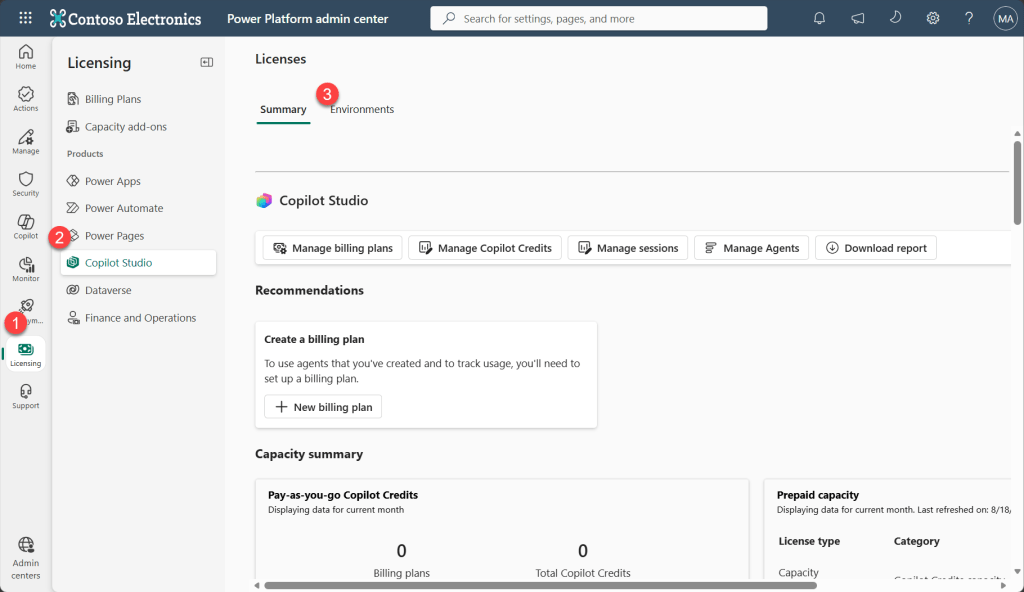
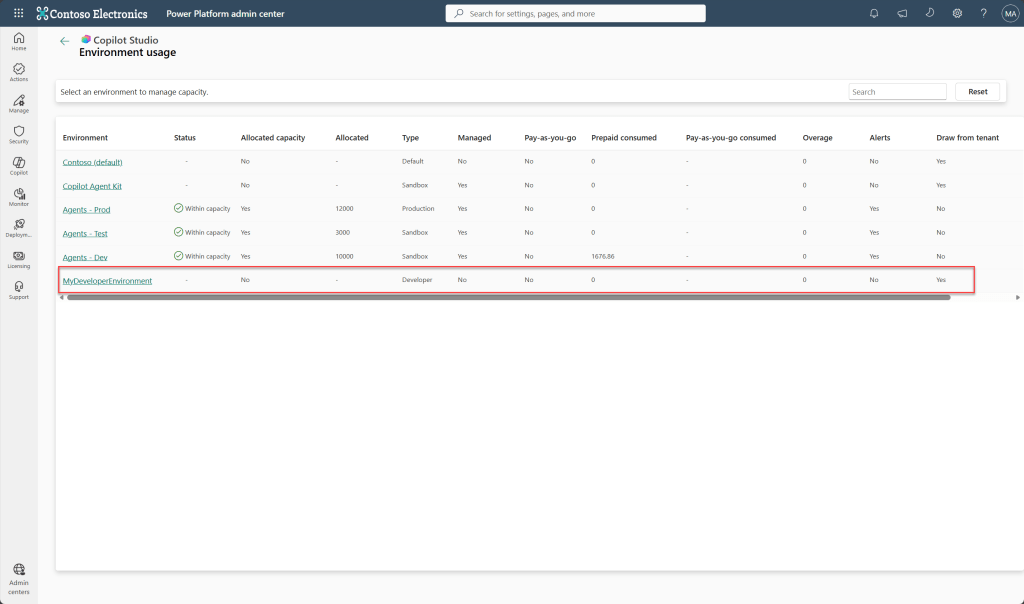
Here, we can see that MyDeveloperEnvironment has the Draw From Tenant set to Yes. We’re going to use Environment Groups and Rules to automatically change this setting at scale.
Now let’s look at how we put that into effect. First, we need to create the group. Navigate to Manage and Environment Groups. Click New Group.
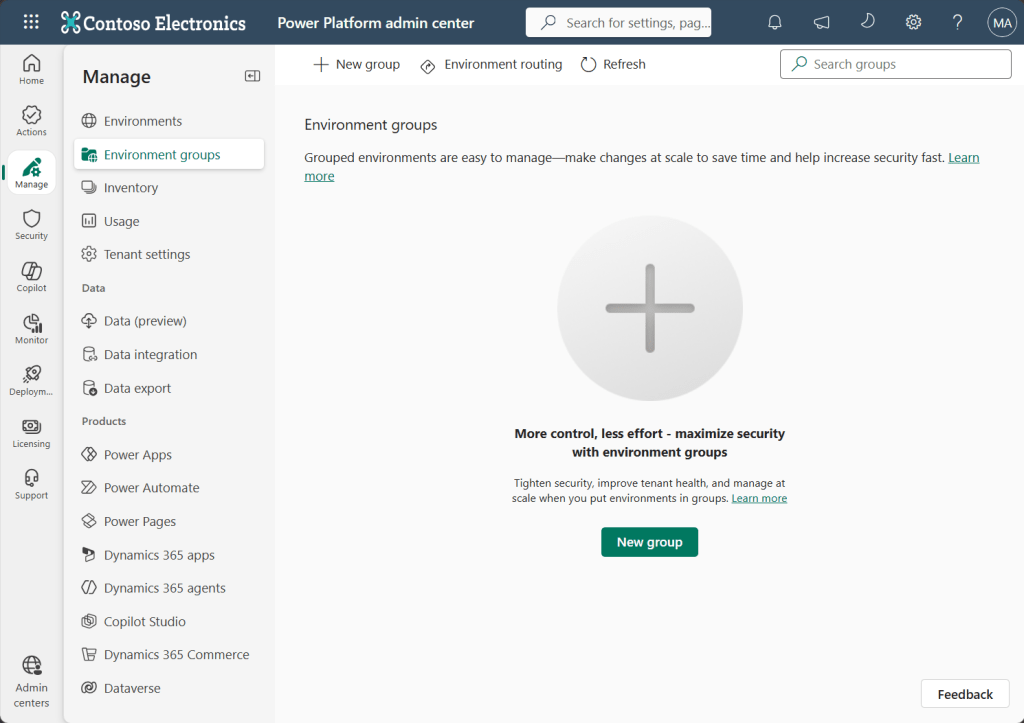
We’re going to give this group a name – it’s important to be descriptive so we understand the purpose. I’m naming mine Developer Environments.
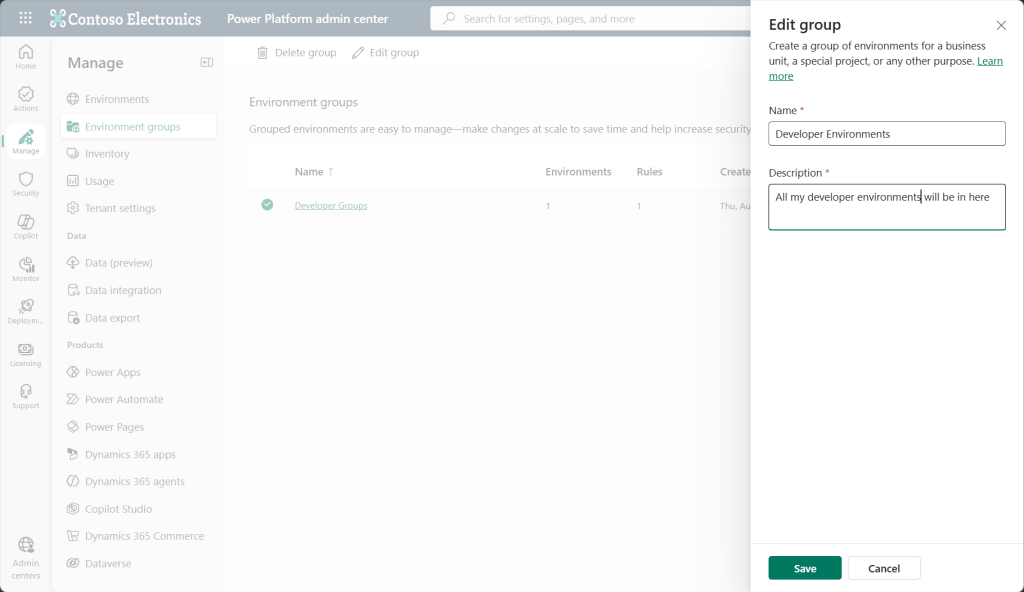
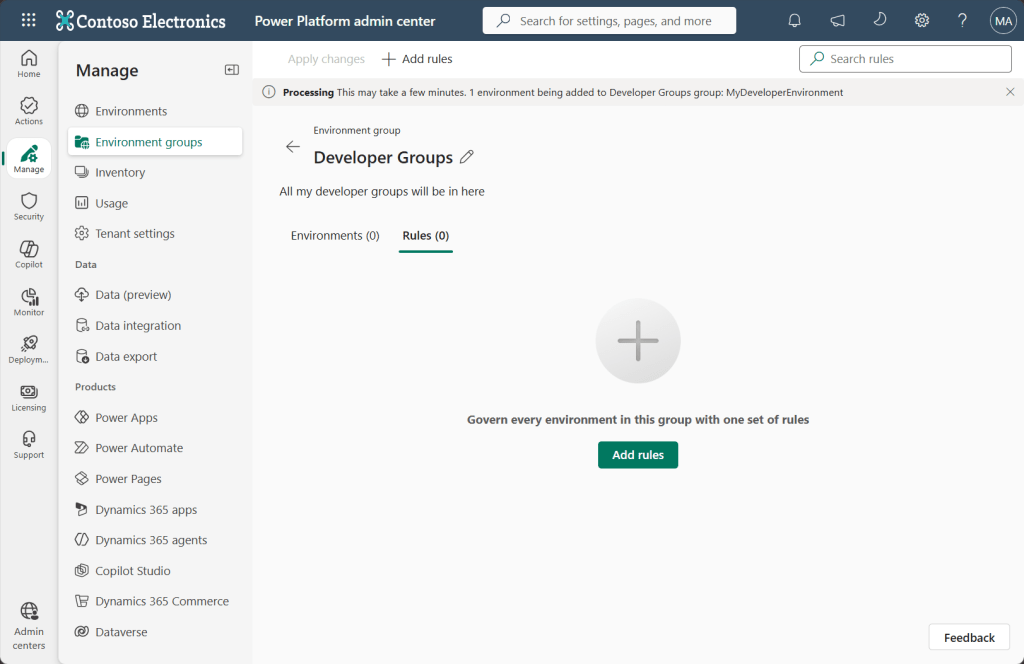
Now I’m going to create the rules I want to apply to my group. Click on the Rules tab and click Add Rules.
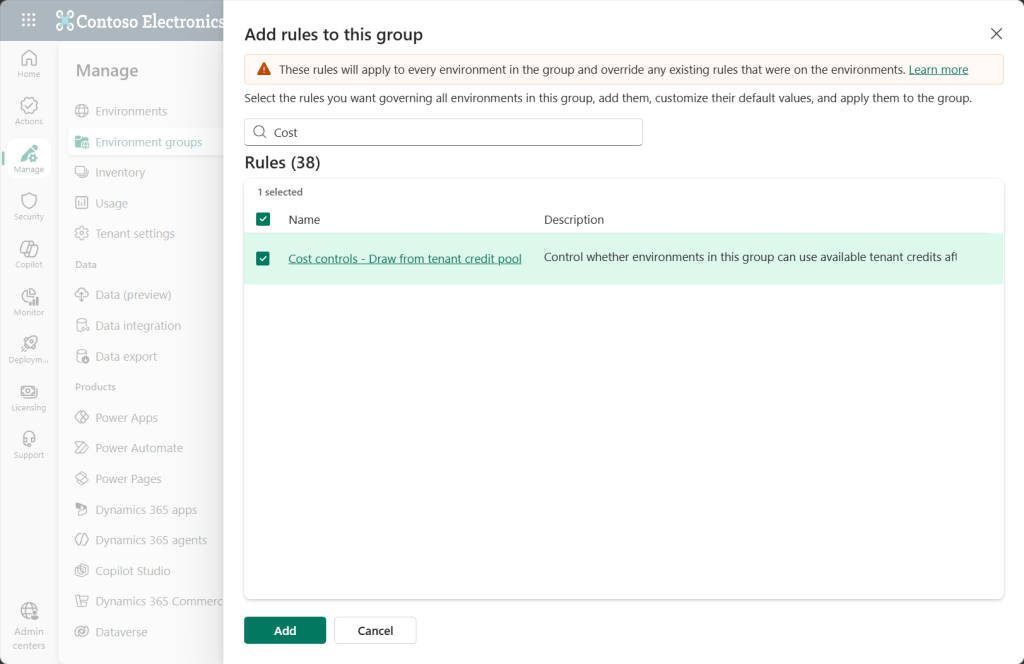
Note the informational banner that states this will override any settings for existing rules on environments – this is exactly what we want. Now search for Cost Controls – Draw from Tenant Credit Pool. Select it and click Add.
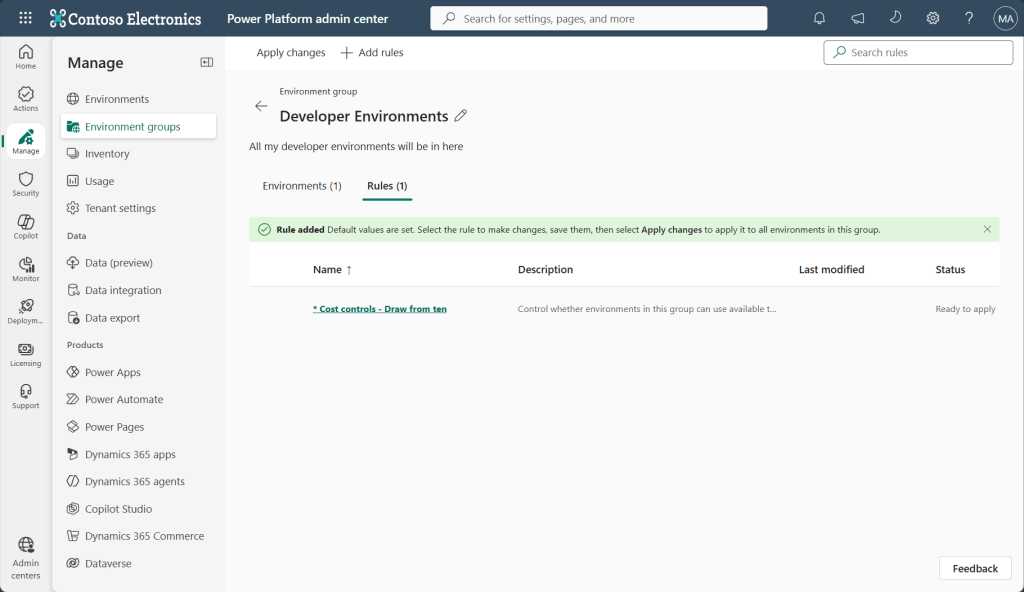
Once it is added, click on the rule so we can edit it.
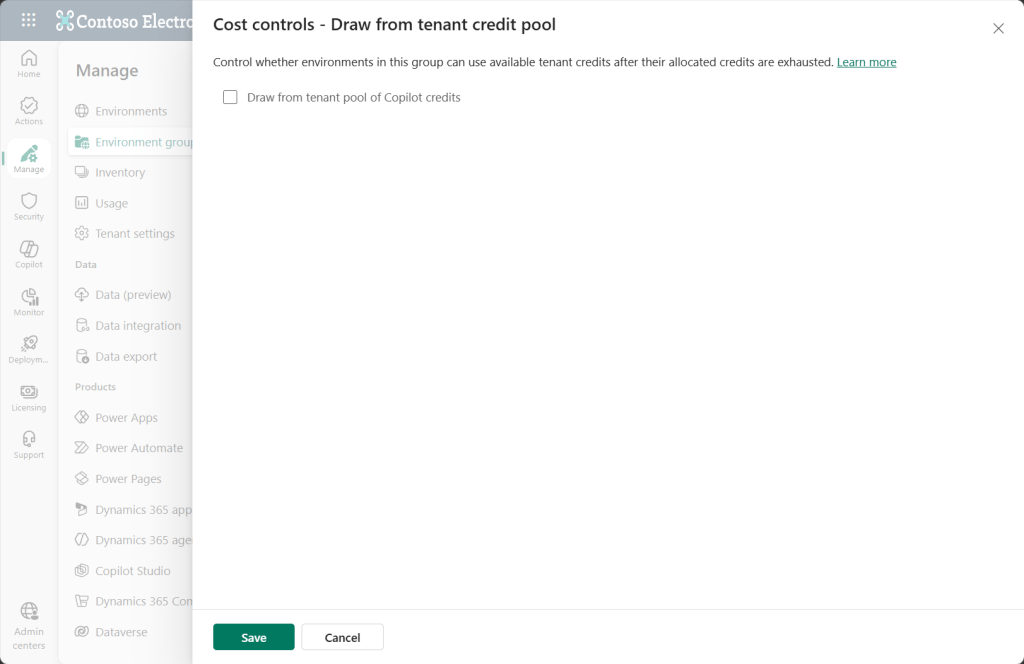
You want to uncheck the box and then click save. This turns off the feature for all environments added to the group. Leaving the box checked will turn on the feature for environments added.
Now we need to apply changes. Make sure no rules are selected so that the Apply Changes option appears in the top ribbon. Click Apply Changes to put the rules in place.
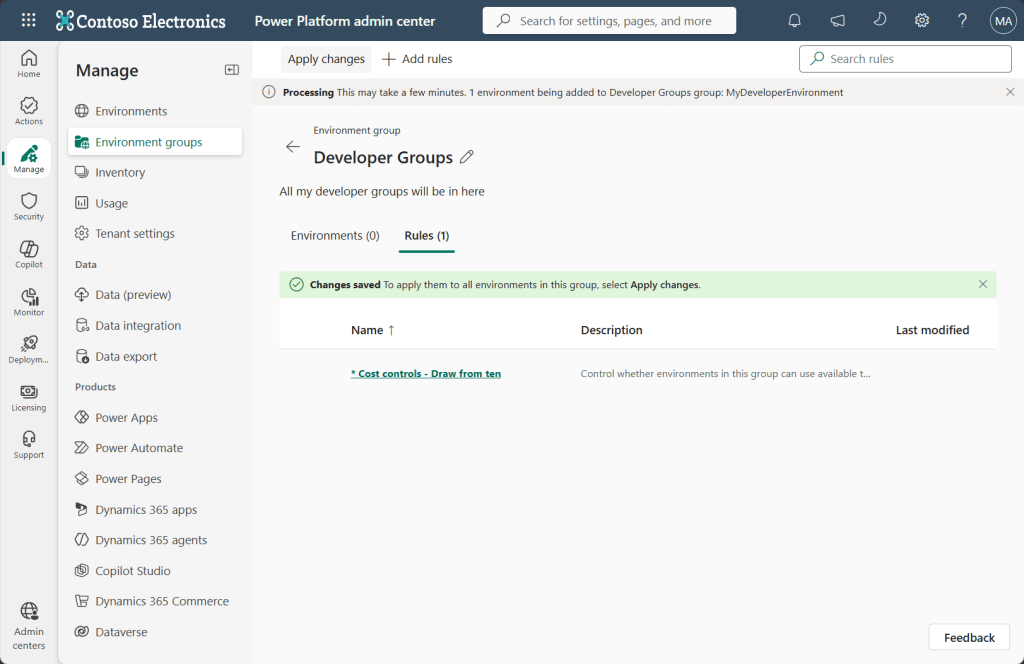
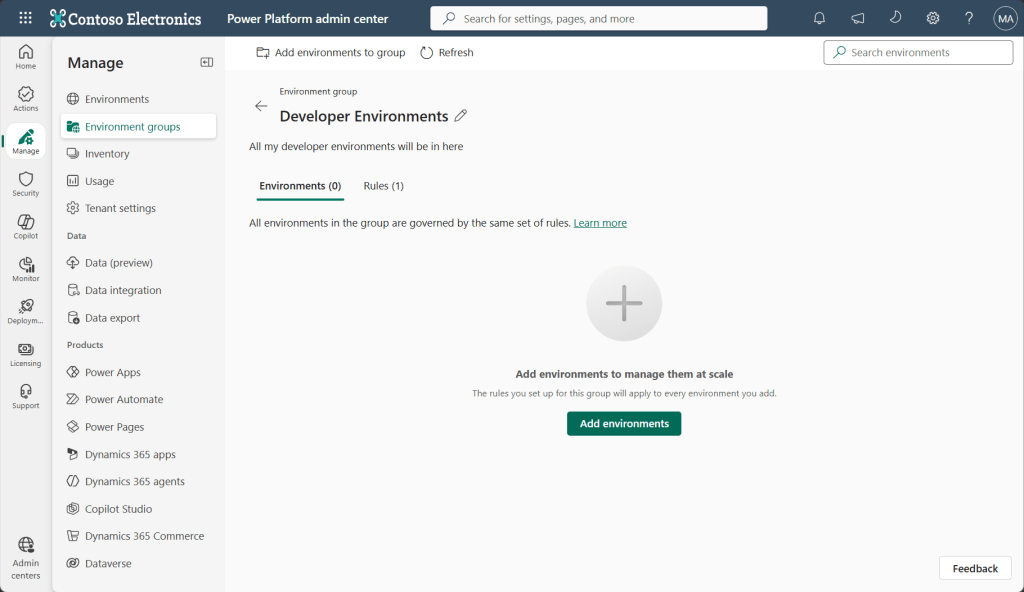
Now we’re going to add the environments to the group. Click on the Environments tab and click Add Environments.
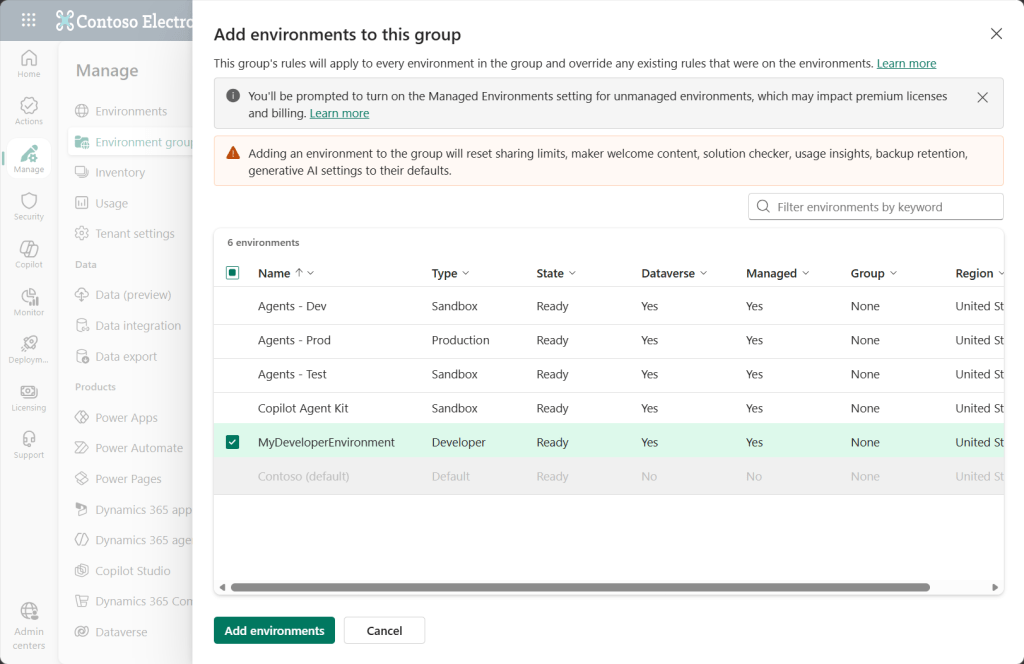
You will see the following screen that will warn you about some of the settings that may change by adding this environment to the group. If you’re okay with this, go ahead and add the environment.
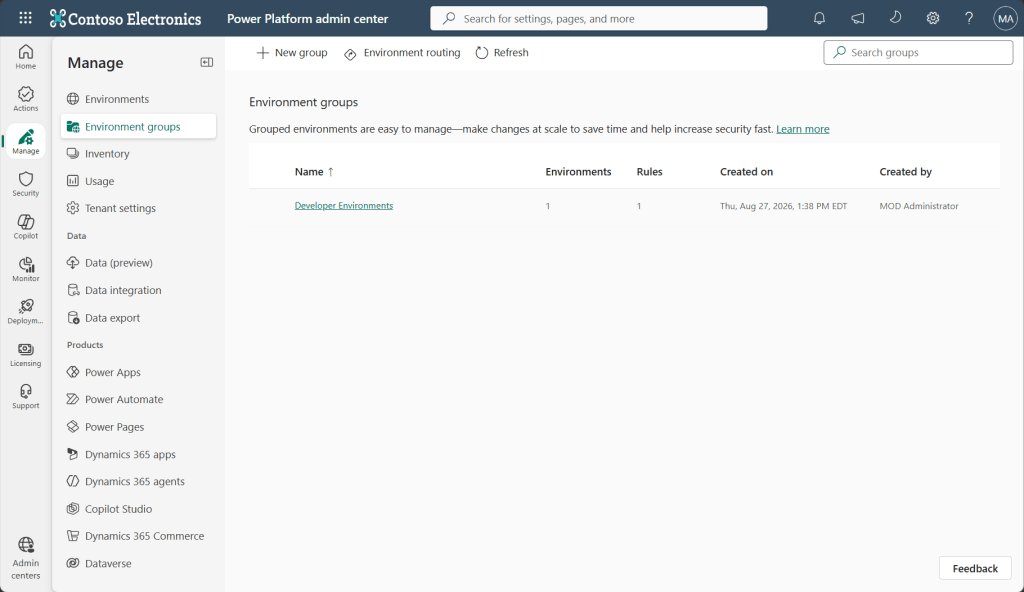
Now we can see that our group has been created with the number of environments and rules associated. This will have turned off the Draw from Tenant Credit Pool for any environments in the group.
But let’s double check this to be sure! Go to Licencing > Copilot Studio > Manage Copilot Credits
Then Click on one of your Developer Environments that have been added to the group
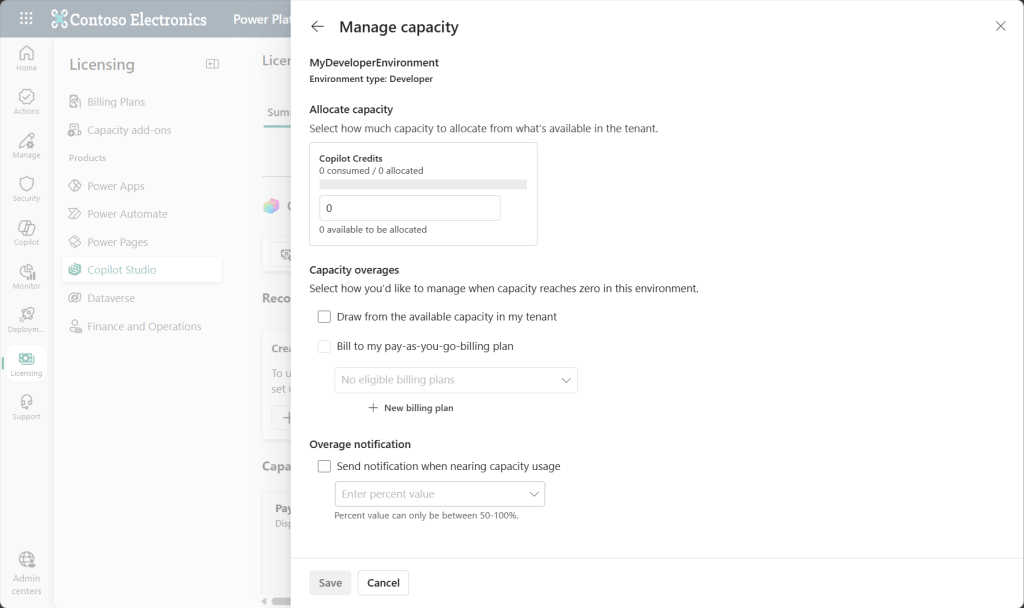
Note that the Draw from available capacity in my tenant has now been unchecked!
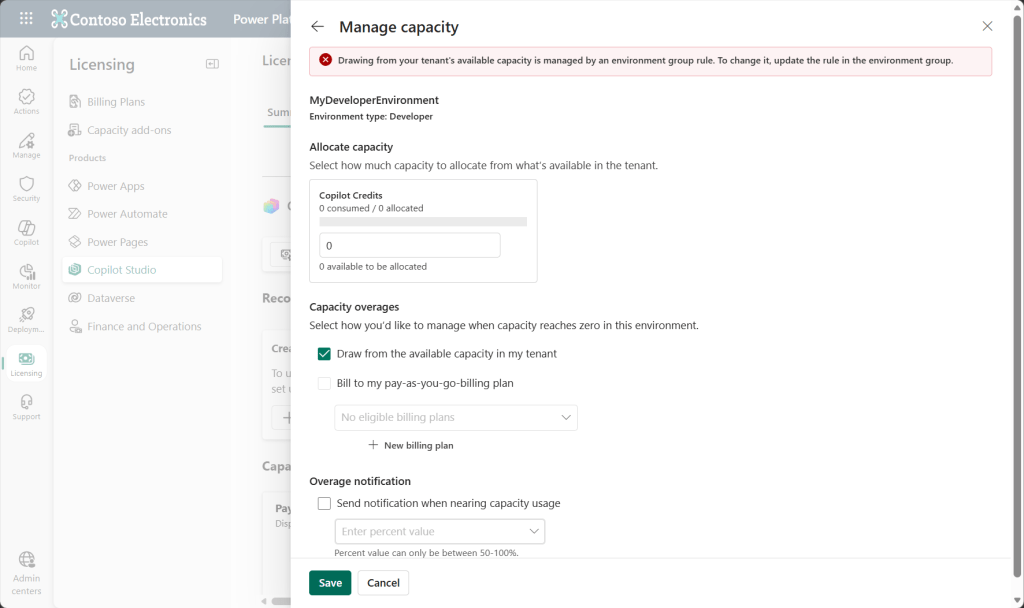
Let’s test this even further. What happens if you try to check it and save it? You’ll get an error stating this is being managed by an environment group rule. Nice!
Finally, if we go back to our original view, we can now see that the Draw From Tenant status is set to No. *I did note that as of 8/27 there appeared to be a UI bug where this status still showed yes, however, when I went into the environment and looked at the flag, it had actually been flipped to no. A bug has been raised with the product team.
This feature paired with Environment Routing is a truly powerful way of ensuring all Developer Environments avoid being unintentionally charged from the tenant pool. Hopefully this will help you get ahead of the upcoming changes on September 1st.

